Quick Start
This page takes you from an unpacked Blade 3 to a board that has started up.
Packing list
A standard Blade 3 package includes:
- 1 x Blade 3 board, with the heatsink already installed
- 1 x Safety Information
- 1 x User Manual
What you need
To start Blade 3 you also need:
- A USB PD power adapter that supports PD 2.0 or PD 3.0, with a USB-C to USB-C cable. Adapters that have been tested are listed in Power Supply.
- An HDMI monitor and an HDMI cable.
- A USB-C hub, a keyboard and a mouse. Blade 3 has no USB-A ports, so the keyboard and mouse connect through a hub.
- An Ethernet cable to your router, to reach the internet and to log in over SSH.
Not needed for a first start, but useful later:
- A USB to TTL serial adapter, to reach the serial console when there is no monitor
- A Blade 3 Case
With the server edition of Mixtile OS, you can leave out the monitor, the hub, the keyboard and the mouse. Connect only the Ethernet cable and the power adapter, then log in over SSH as described in Connect to Blade 3.
Installing the operating system
Blade 3 starts the system on its eMMC. To run Mixtile OS, install it first by following Flashing an OS Image, then come back here to connect and power on the board.
Wiring and powering up
The ports you need are all along one edge of the board. Connect everything else first, and the power adapter last.
-
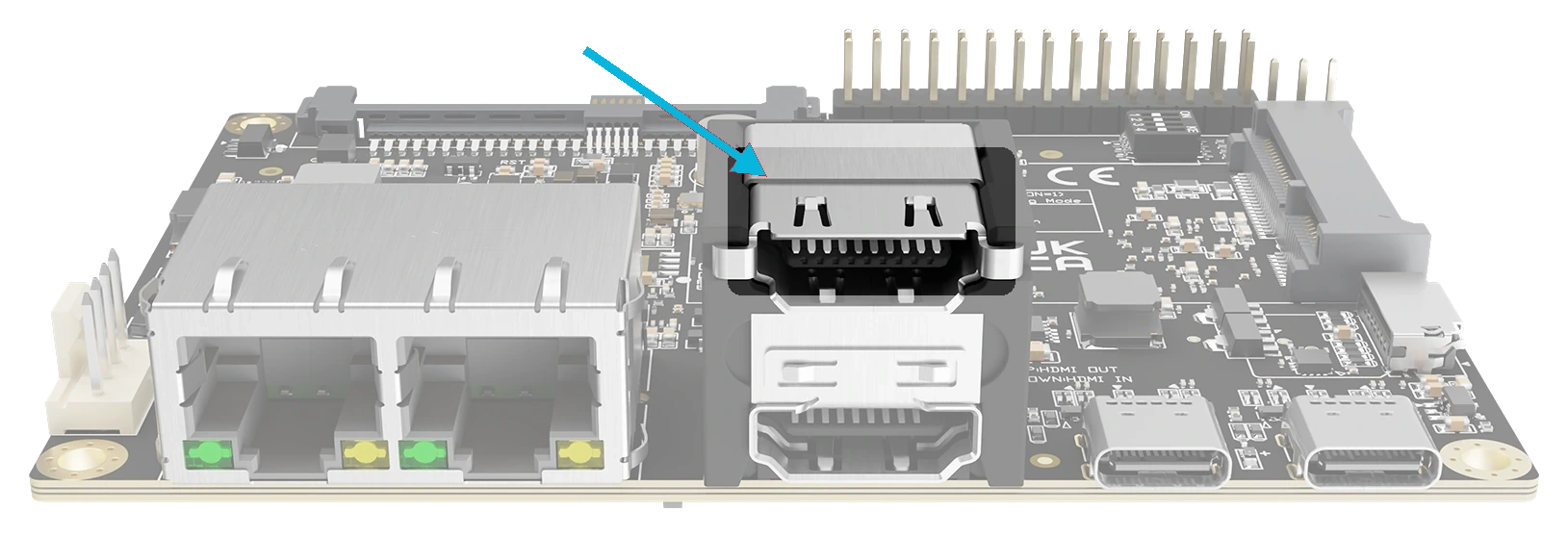
Connect the monitor to HDMI OUT, the upper of the two HDMI ports. The lower port, HDMI IN, is an input and shows nothing.
-
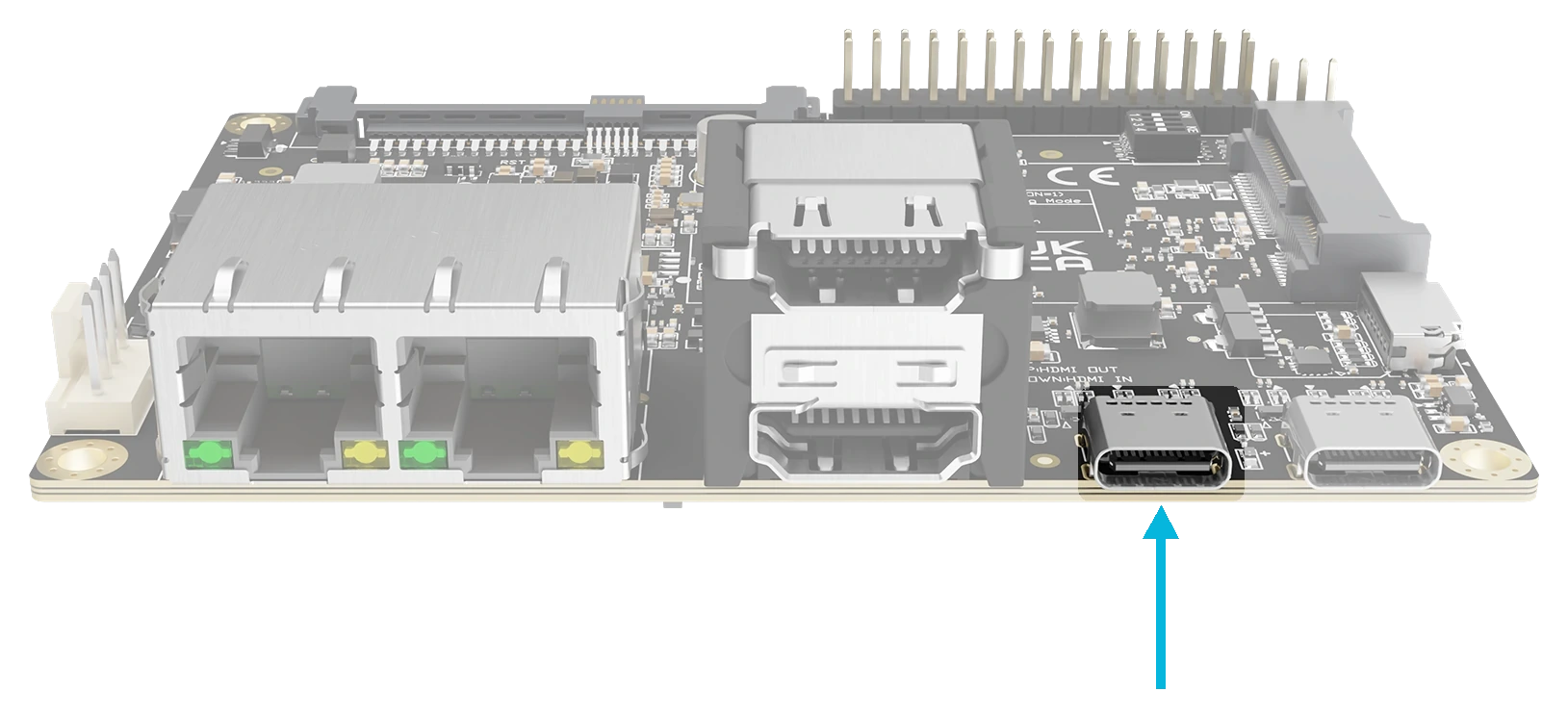
Connect the USB-C hub to USB0, the USB-C port next to the HDMI ports, then connect the keyboard and mouse to the hub.
-
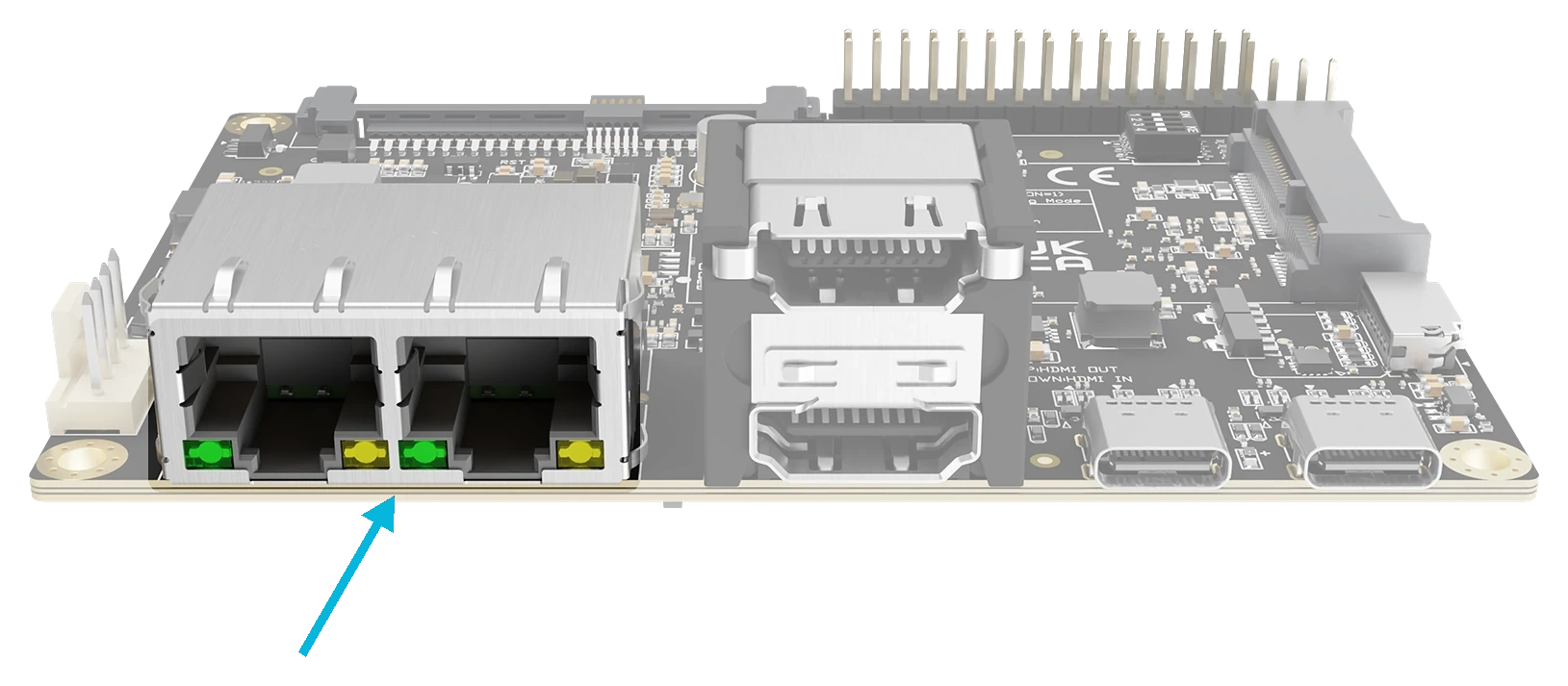
Connect the Ethernet cable to either Ethernet port, and the other end to your router.
-
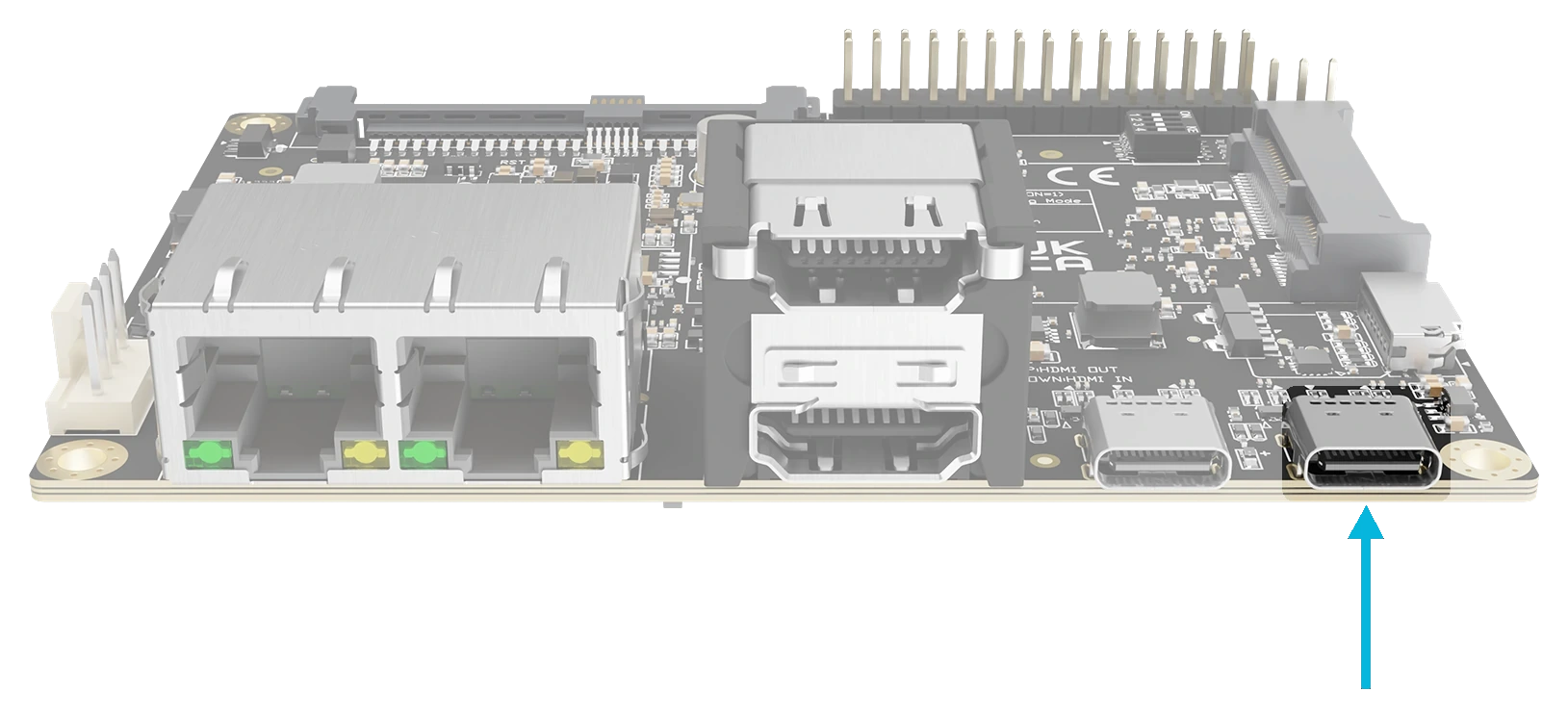
Connect the power adapter to USB1, the USB-C port near the corner, and plug the adapter in. USB1 is the port with USB Power Delivery.
Blade 3 starts as soon as power is connected, and the power LED lights up.
After power-up
Once the system has started:
- Desktop edition: the GNOME desktop appears on the monitor, already logged in as
mixtile. - Server edition: a
mixtile-blade3 login:prompt appears on the monitor. Log in asmixtilewith the passwordmixtile. See Login details.
To check that the system is running and on the network, open a terminal and run:
ip -brief address
The Ethernet port you connected shows UP and an IPv4 address from your router. Use that address to log in over SSH.
If the monitor stays blank, check that the cable is in HDMI OUT and that the power LED is on. If the LED is off, see Power Supply.