Installing Drivers for Blade 3 Boards
This is the legacy workflow for Blade 3 nodes that run Debian 11, using the 5.10.66 boot image. Debian 11 images for Blade 3 are no longer offered on the Blade 3 Downloads page. For a new setup, follow Updating the MIOP Driver, which uses the Ubuntu 24.04 Cluster Box node image.
To successfully operate Blade 3 boards after installing them into Cluster Box, you must update the boot image file and install a driver for the Blade 3 boards. This document provides you guidance on how to update the boot image file and install the driver.
You can watch the following video to get a quick start:
Install drivers for Mixtile Blade 3 boards
Preparations
- Download boot image file: boot.img
- Download driver: miop-control-arm64.deb
- Install ADB on your computer. It is part of the Android SDK Platform-Tools.
- Prepare a USB-C cable.
- Make sure you are using the Debian 11 system for Blade 3 boards. The general-purpose Ubuntu image for Blade 3 is not the Cluster Box node image.
Steps
Step 1. Download the boot image file and driver and put them to the Blade 3 board
1.1 Connect your PC or Mac to the USB-C port (near HDMI) of Blade 3 indicated by N1 using the USB-C cable.
1.2 Download the boot image file and driver to your PC or Mac. Under the directory of the two files, run the following adb command to push them to the Blade 3 board:
adb push boot.img miop-control-arm64.deb /home/mixtile
You can also download the files to the Blade 3 board directly, or copy them over the network. Replace <blade3-ip> with the address of the Blade 3 board:
scp boot.img miop-control-arm64.deb mixtile@<blade3-ip>:/home/mixtile/
Step 2. Update the boot image file and install the driver
2.1 Open a shell on Blade 3 and go to the directory with the two files:
adb shell
cd /home/mixtile
2.2 Update the boot image file:
sudo dd if=boot.img of=/dev/mmcblk1p3 conv=sync
2.3 Install the driver:
sudo dpkg -i miop-control-arm64.deb
Step 3. Install the driver to other Blade 3 boards
Repeat the preceding steps to update the boot image file and install the driver to the other three Blade 3 boards.
Step 4. Reboot Cluster Box
Disconnect the power adapter of Cluster Box, then connect it again.
Step 5. Check whether Blade 3 boards are displayed either via SSH or via GUI
Method 1: Via SSH
-
Log in to Cluster Box by running the ssh mixtile@Cluster Box IP address command.
-
List active Blade 3 boards by running the nodectl list command.
If the command output shows the four Blade 3 boards as shown below, they have been started properly.
If no device is found, run the rescan command and then the list command to view the device.

03:00.0 Network controller: Mixtile Limited Blade 3 (rev 01)

04:00.0 Network controller: Mixtile Limited Blade 3 (rev 01)

05:00.0 Network controller: Mixtile Limited Blade 3 (rev 01)

06:00.0 Network controller: Mixtile Limited Blade 3 (rev 01)
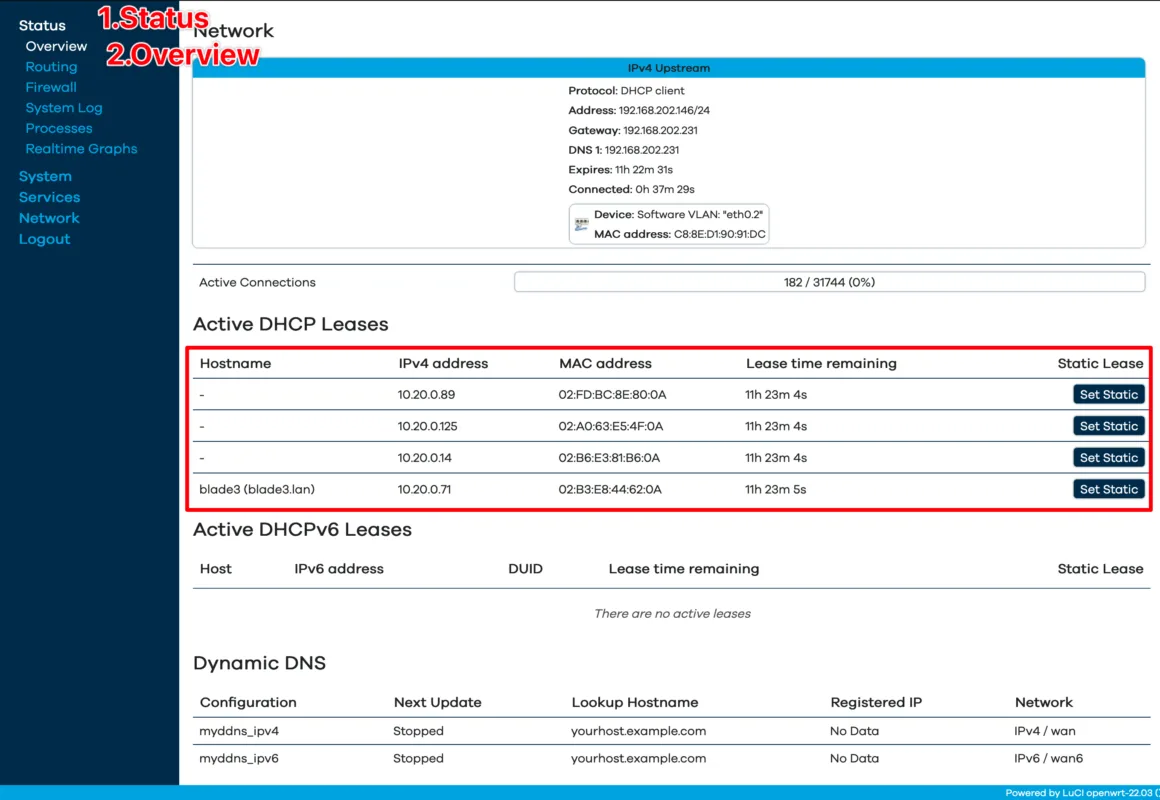
Method 2: Via GUI:
-
Log in to the web page of Cluster Box.
-
Scroll the page to the Active DHCP Leases area.
If the four Blade 3 boards are displayed as shown below, they have been started properly.