Basic Operations and Commands
After installing the hardware of Cluster Box, you can operate Cluster Box or Blade 3 boards as required. This document describes how to perform these basic operations, including:
- Log in to Cluster Box
- List active Blade 3 nodes
- Power on one or all Blade 3 nodes
- Power off one or all Blade 3 nodes
- Restart one or all Blade 3 nodes
- Flash firmware of one or all Blade 3 nodes
- Flash firmware of the control board
Before using Cluster Box, you must install the MIOP driver on the controller board and update the Blade 3 nodes. For details, see Updating the MIOP Driver. Nodes that run the earlier Debian 11 image use Installing Drivers for Blade 3 Boards instead.
Log in to Cluster Box
You can log in to Cluster Box either via a web page or via SSH. Before login, you need to find the IP address of Cluster Box.
Find IP address
Find IP address through the router web page
Log in to the router configuration page and locate the IP address of Cluster Box from the router device list.
Login
The default user name and password are mixtile. To log in to Cluster Box as user root, change user name and password to root.
Login via Web page
- Enter the IP address of Cluster Box in your browser.
- On the login page, retain the username mixtile and enter password mixtile. Then you are directed to the GUI of Cluster Box.
Login via SSH
-
Start a terminal window and type ssh mixtile@Cluster Box IP address, for example,
ssh mixtile@192.168.1.146. -
Type password
mixtileand press Enter.The device page is displayed, as shown below.
$ ssh mixtile@192.168.1.146
mixtile@192.168.1.146's password:
  ____ _           _              ____     Mixtile
 / ___| |_   _ ___| |_ ___ _ __  | __ )  _____  __
| |   | | | | / __| __/ _ \ '__| |  _ \ / _ \ \/ /
| |___| | |_| \__ \ ||  __/ |    | |_) | (_) >  <
 \____|_|\__,_|___/\__\___|_|    |____/ \___/_/\_\
 -----------------------------------------------------
 https://www.mixtile.com/
 -----------------------------------------------------
List all Blade 3 nodes
To list all active Blade 3 nodes installed in Cluster Box, run the following command:
nodectl list
Power on Blade 3 nodes
You can power on one Blade 3 node or all Blade 3 nodes as required.
Power on one Blade 3 node
nodectl poweron -n N
N indicates the ID of the Blade 3 node and must be specified.
To check whether the target Blade 3 node is powered on, check whether its power indicator is on, or run the nodectl list command.
Power on all Blade 3 nodes
nodectl poweron --all
To check whether all Blade 3 nodes are powered on, check whether their power indicators are on, or run the nodectl list command.
Power off Blade 3 nodes
You can power off one Blade 3 node or all Blade 3 nodes as required.
nodectl poweroff cuts the power to the node immediately. Shut down the operating system on the node first, for example by running sudo poweroff on the node, and then run this command.
Power off one Blade 3 node
nodectl poweroff -n N
N indicates the ID of the Blade 3 node and must be specified.
To check whether the target Blade 3 node is powered off, check whether its power indicator is off, or run the nodectl list command.
Power off all Blade 3 nodes
nodectl poweroff --all
To check whether all Blade 3 nodes are powered off, check whether their power indicators are off, or run the nodectl list command.
Restart Blade 3 nodes
You can restart one Blade 3 node or all Blade 3 nodes as required.
nodectl reboot cuts the power to the node and then powers it on again. Shut down the operating system on the node first, for example by running sudo poweroff on the node, and then run this command.
Restart one Blade 3 node
nodectl reboot -n N
N indicates the ID of the Blade 3 node and must be specified.
To check whether the target Blade 3 node is restarted, run the nodectl list command.
Restart all Blade 3 nodes
nodectl reboot --all
To check whether the target Blade 3 nodes are restarted, run the nodectl list command.
Enter Blade 3 console
nodectl console -n N
N indicates the ID of the Blade 3 node and must be specified.
To exit the console, press Ctrl-A, then Ctrl-X.
Flash firmware of Blade 3 nodes
This function is currently under development.
To flash the firmware of Blade 3 nodes on Cluster Box, use the PCIe interface. You can flash the firmware of one Blade 3 node or all Blade 3 nodes as required.
Flash firmware of one Blade 3 node
nodectl flash -n N
N indicates the ID of the Blade 3 node and must be specified.
Flash firmware of all Blade 3 nodes
nodectl flash --all
Flash firmware of the control board
To flash firmware of the control board, enter the web page of Cluster Box and perform the following steps:
Step 1. On the Home page, choose System > Backup / Flash Firmware.
Step 2. In the Flash new firmware image area, click Flash image….
Step 3. In the Uploading file… dialog box, click Browse and select the image file.
Step 4. Click Upload. On the confirmation page that is displayed, click Continue.
Wait for the process to complete.
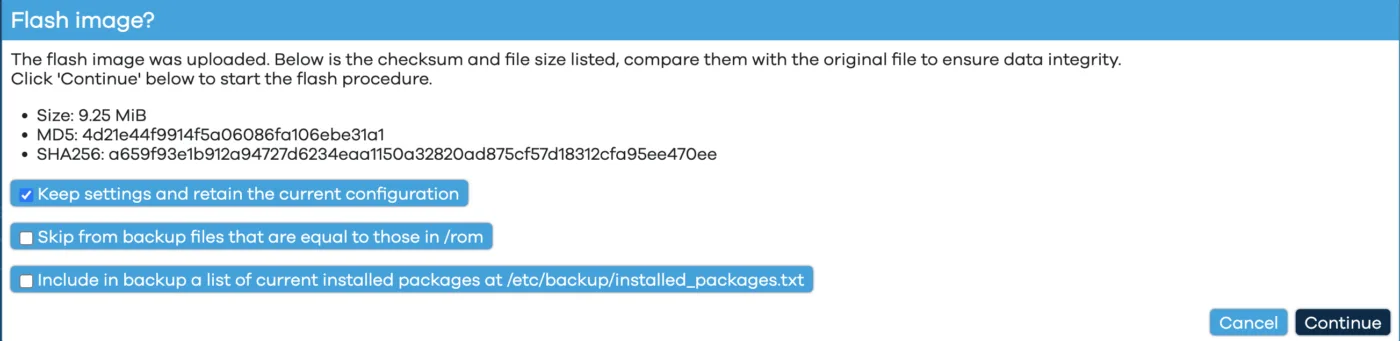
Figure 2. Confirm flashing image

Figure 3. Flashing image in progress
If you cannot access the web page of Cluster Box, you can flash the firmware to its factory settings (see this doc).