Installing Mixtile Add-ons
Mixtile offers the following two add-ons, Mixtile Flasher and MIXTILE Z-Wave Region Configurator, to enhance Mixtile 2-in-1 Zigbee & Z-Wave mPCIe Interface Module. This guide walks you through how to install and use them to tailor to your use cases.
Introducing the add-ons
-
MIXTILE Flasher: By default, the Zigbee System on Chip (SoC) supports only the Zigbee firmware option. If you need it to support both Zigbee and Thread, you can use this add-on to re-flash its firmware. In addition, you can use MIXTILE Flasher to flash the firmware back to Zigbee-only.
-
MIXTILE Z-Wave Region Configurator: Sometimes you might want to add Z-Wave devices from other regions. In this case, you can use this add-on to change the region settings of your Z-Wave SoC.
Installing the add-ons
This guide assumes that you already have Home Assistant installed in your Mixtile Edge 2. If not, install it first by referring to Home Assistant OS.
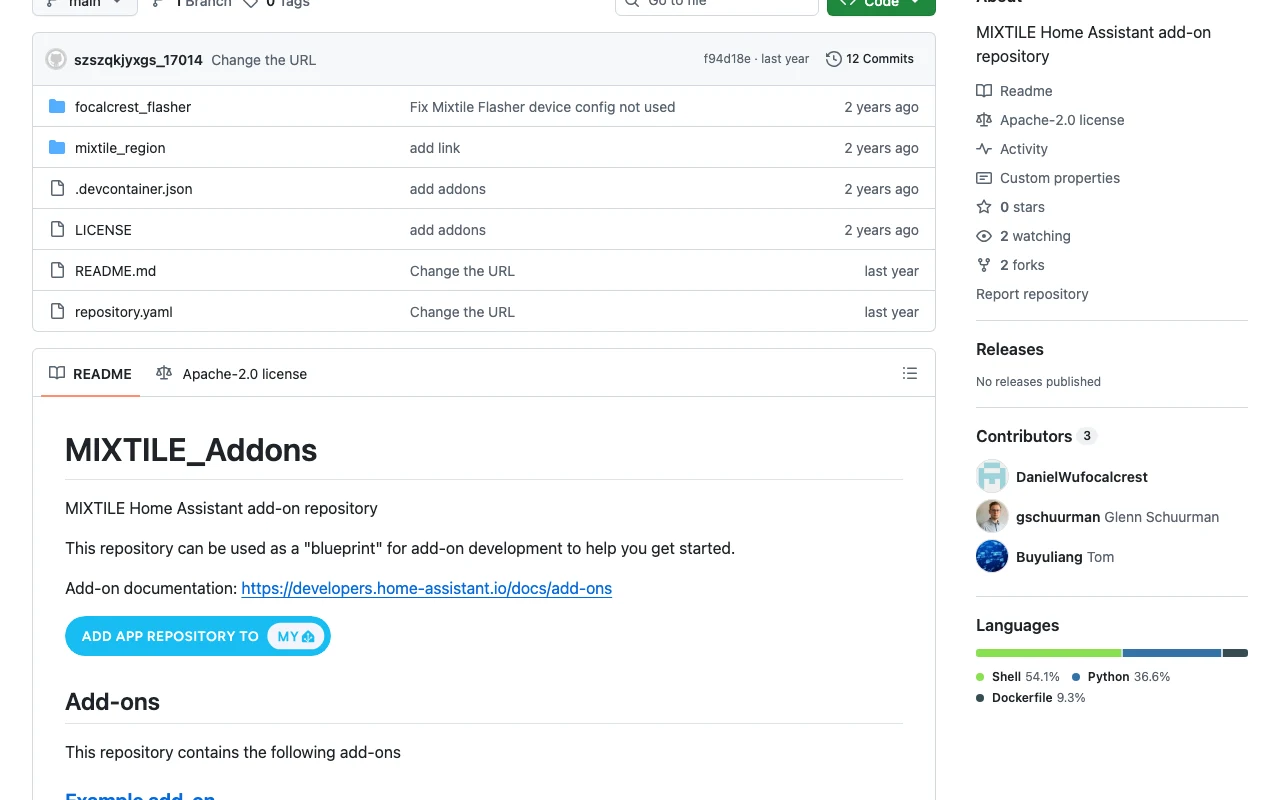
- Visit MIXTILE_Addons GitHub and click ADD APP REPOSITORY TO MY:
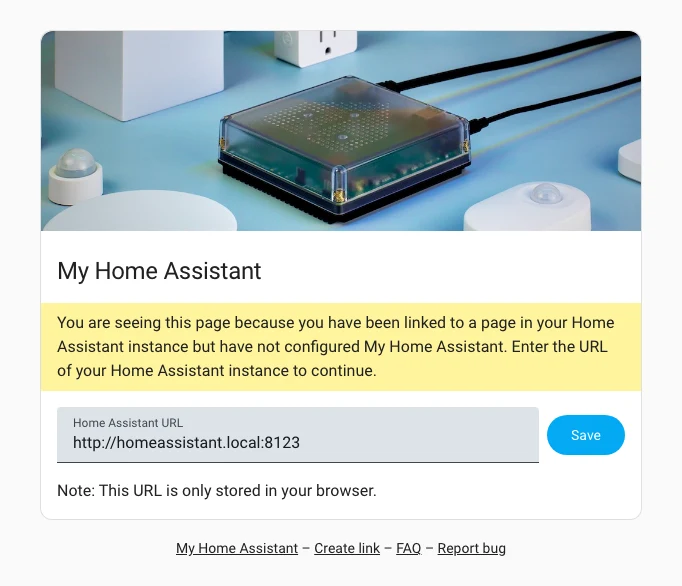
- Enter the URL of Home Assistant and click Save:
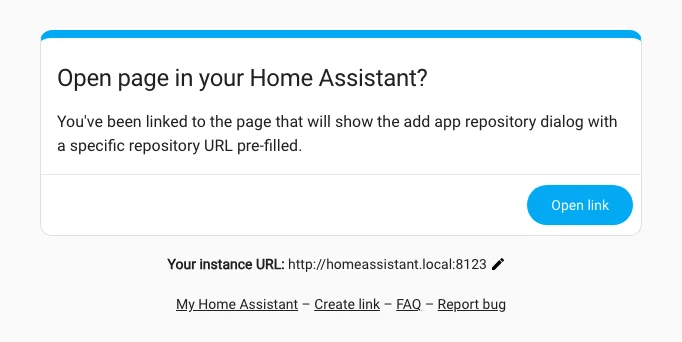
- Click Open link:
-
Home Assistant opens and asks whether to add the repository. Confirm to add it.
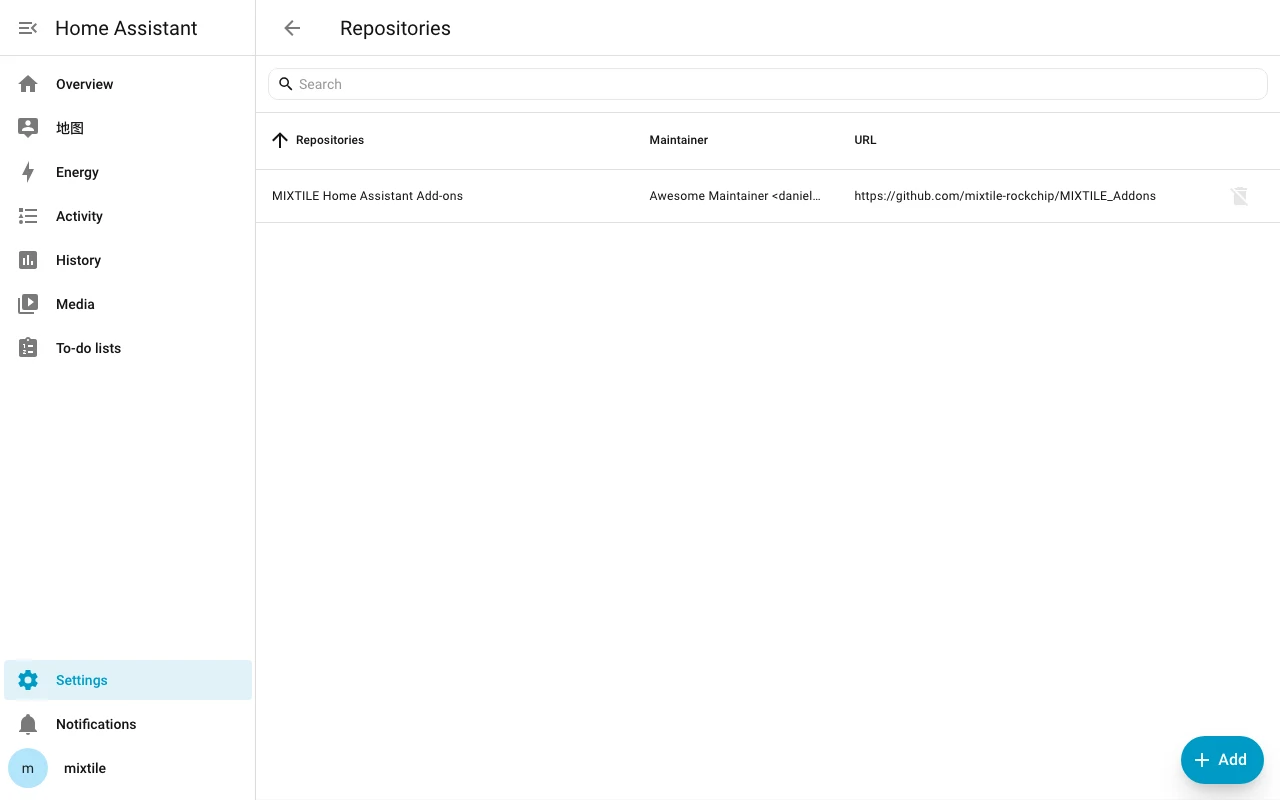
You can also add the repository by hand: click Settings > Apps > Install app, click ⋮ > Repositories in the upper-right corner, click Add, and enter
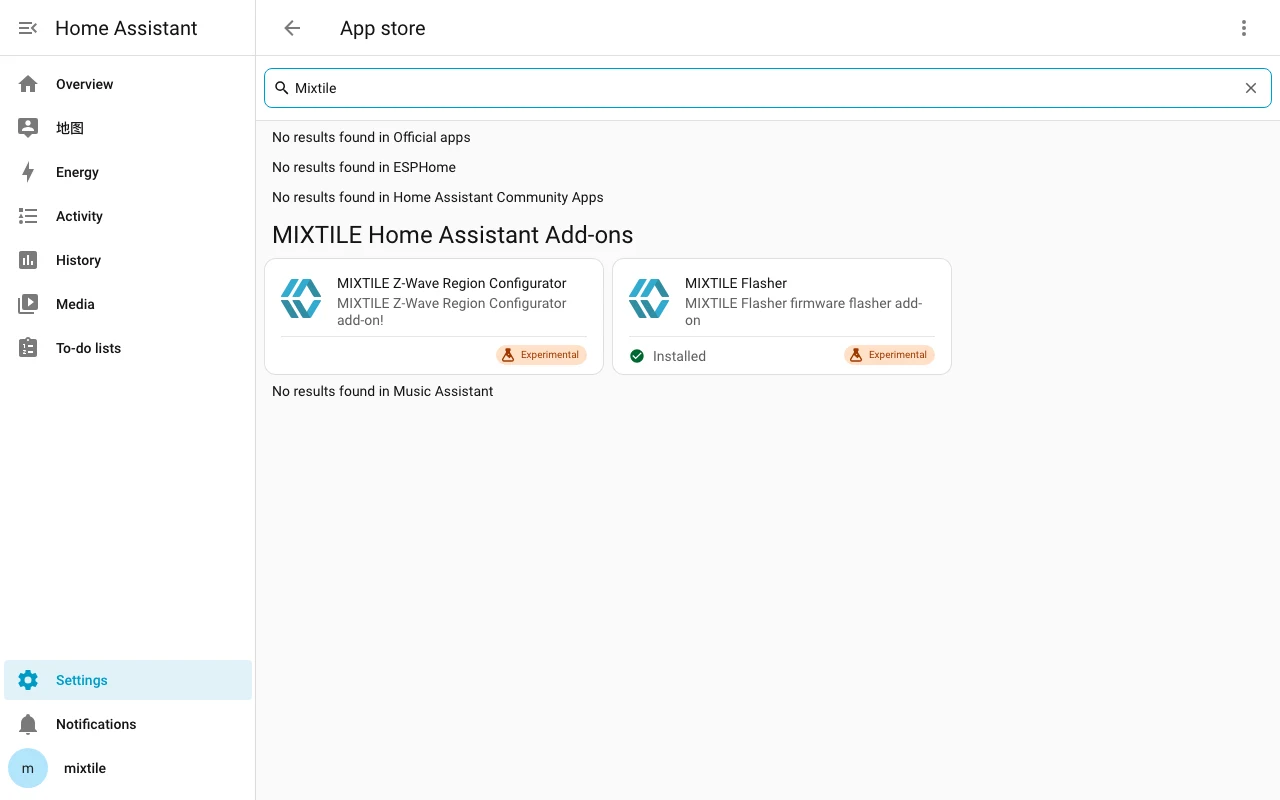
https://github.com/mixtile-rockchip/MIXTILE_Addons. The repository is then listed asMIXTILE Home Assistant Add-ons:
- Click Settings in the side navigation bar, choose Apps, and then click Install app at the bottom-right corner.
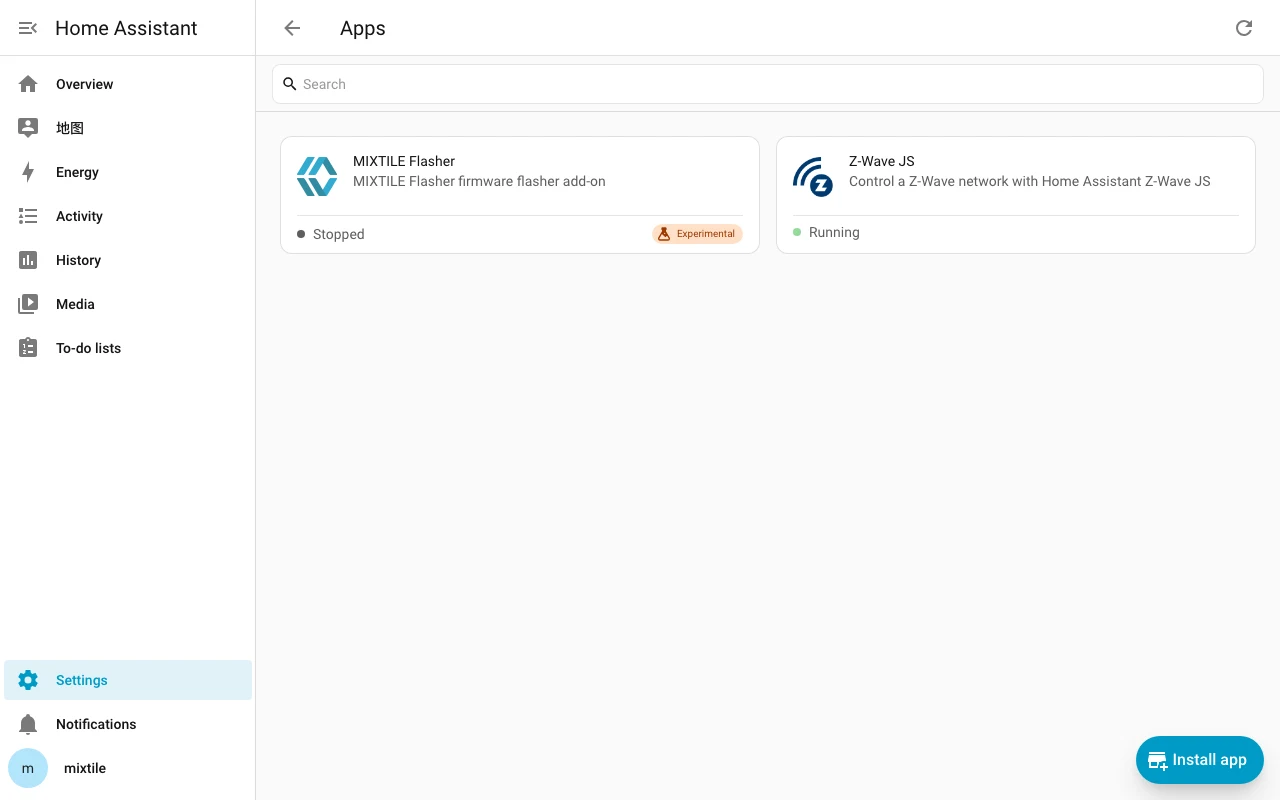
- Type "Mixtile" in the search box. The Mixtile apps are listed under MIXTILE Home Assistant Add-ons:
- Click the app you want to install, for example,
MIXTILE Z-Wave Region Configurator, and click Install:
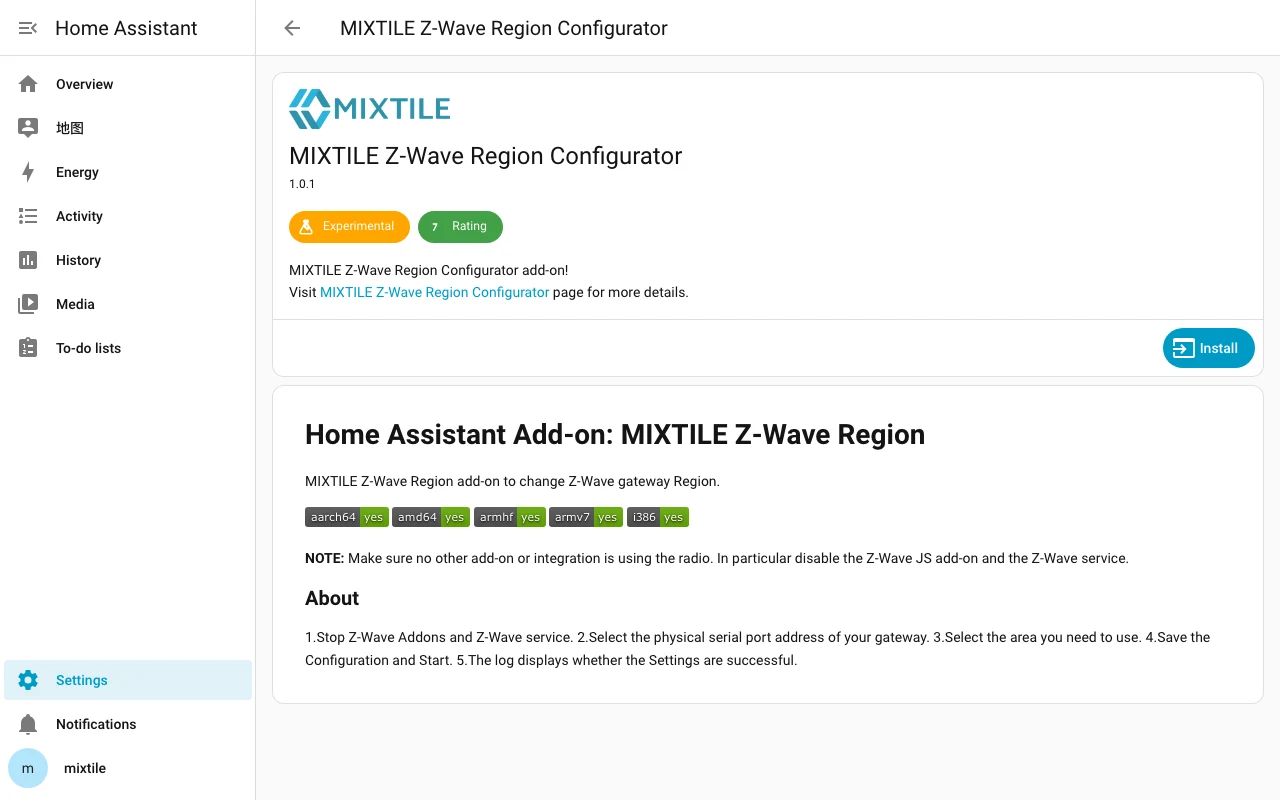
It might take a while for the installation to complete.
Using the add-ons
To use each add-on, visit the pages below as needed:
- MIXTILE Flasher: Flashing Zigbee & Thread Firmware with MIXTILE Flasher
- MIXTILE Z-Wave Region Configurator: Using MIXTILE Z-Wave Region Configurator