Using the Z-Wave Region Configurator
After installing MIXTILE Z-Wave Region Configurator (see Installing Mixtile Add-ons), you can follow this guide to change the region.
Disabling Z-Wave services and add-ons
Before using MIXTILE Z-Wave Region Configurator, you need to disable Z-Wave services and add-ons as follows:
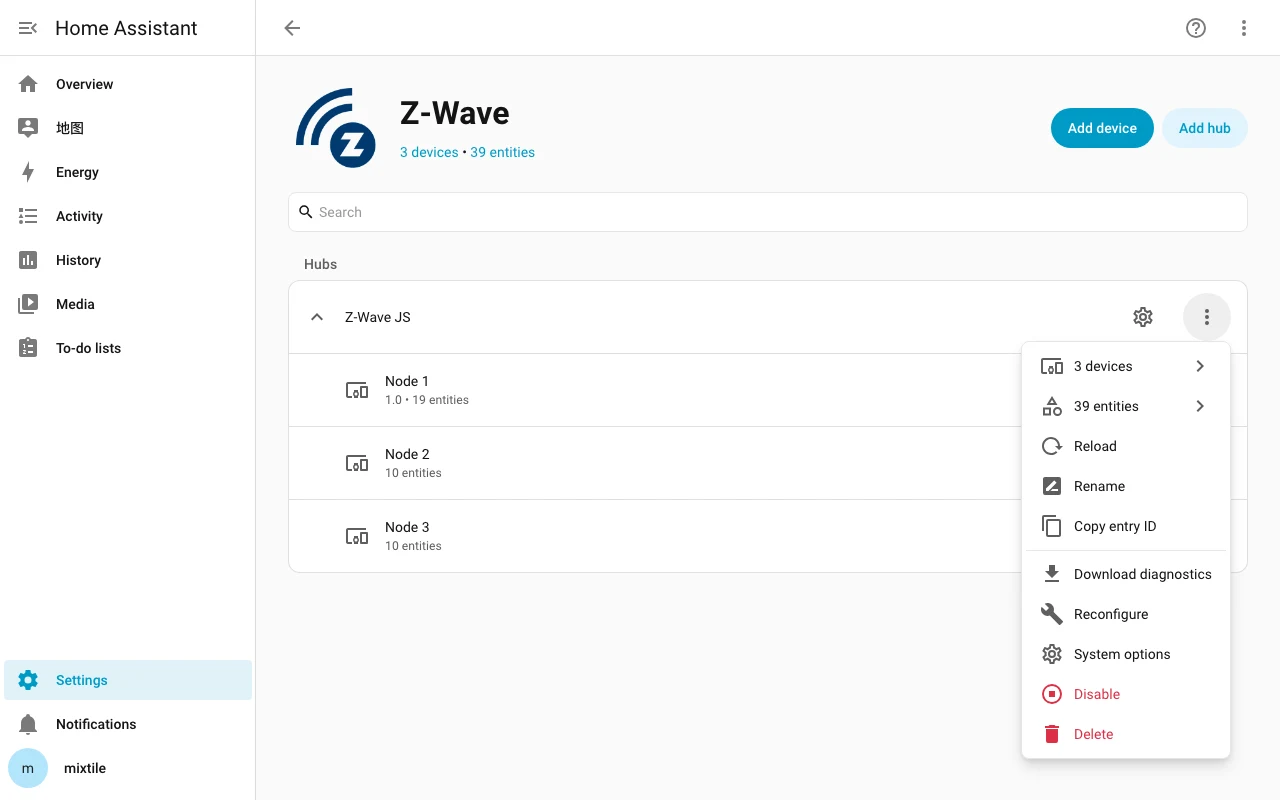
- Click Settings > Devices & services > Z-Wave. On the Z-Wave JS row, click ⋮ > Disable to disable the Z-Wave service:
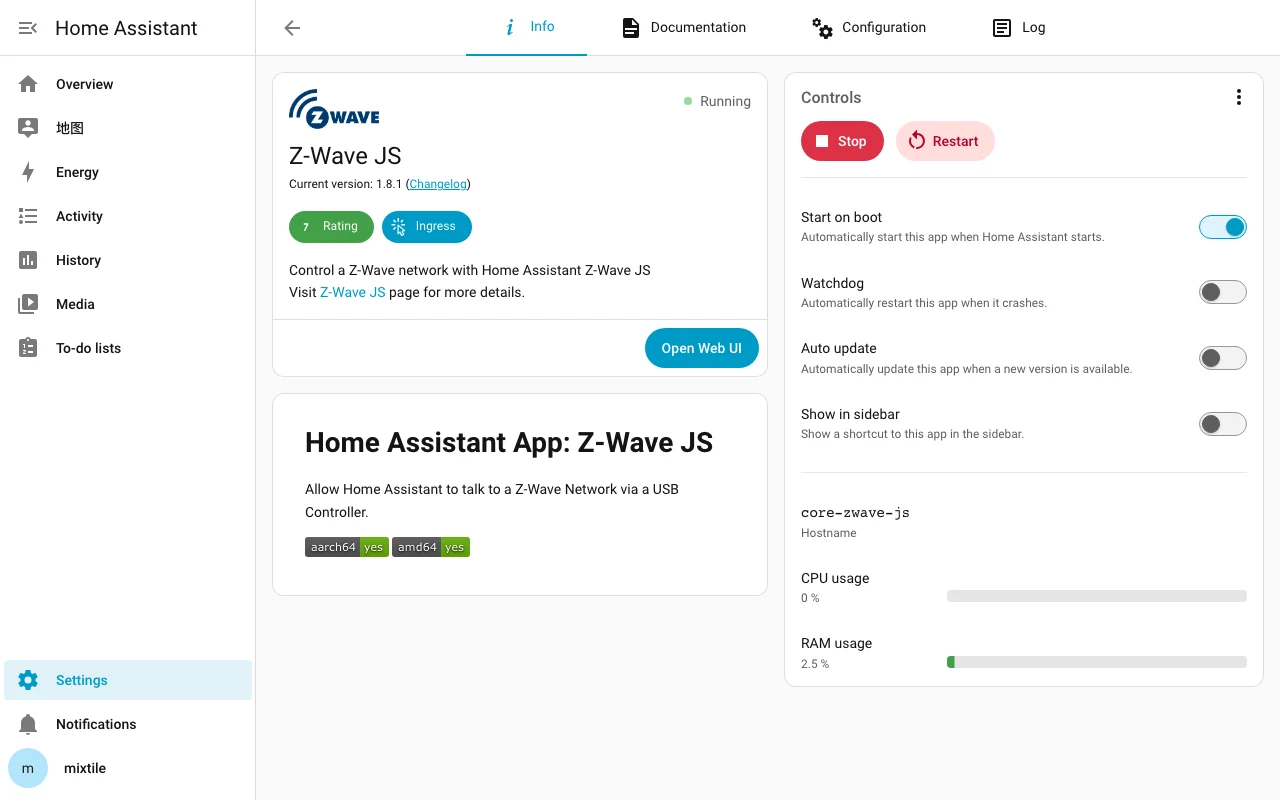
- Click Settings > Apps > Z-Wave JS and click Stop to stop the Z-Wave JS app:
Utilizing MIXTILE Z-Wave Region Configurator
Now you can use MIXTILE Z-Wave Region Configurator to change the region:
-
Click Settings > Apps > MIXTILE Z-Wave Region Configurator.
-
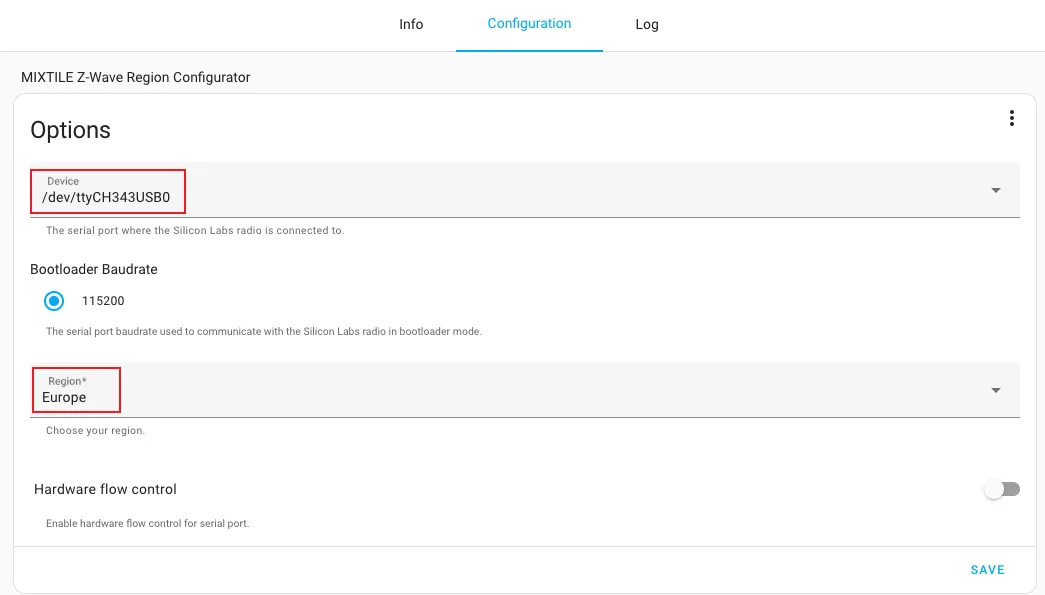
Choose the Configuration tab, set Device to the
USB Dual_Serialdevice whose path ends in-if00and Region to the region you want to use (for example,Europe), and click Save:
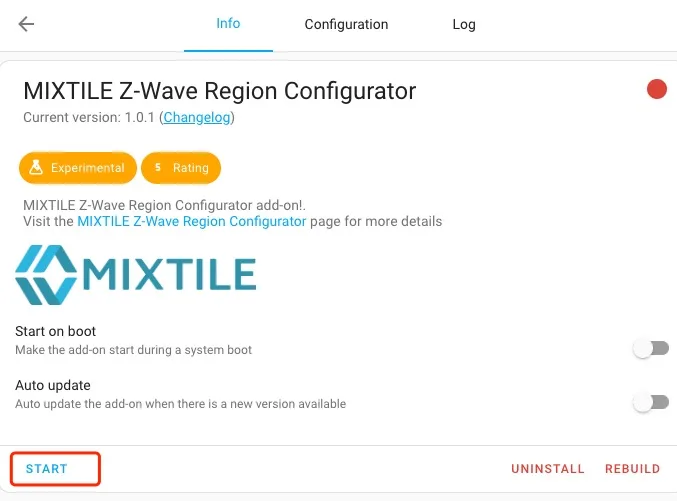
- Go to the Info tab and click START to run the add-on:
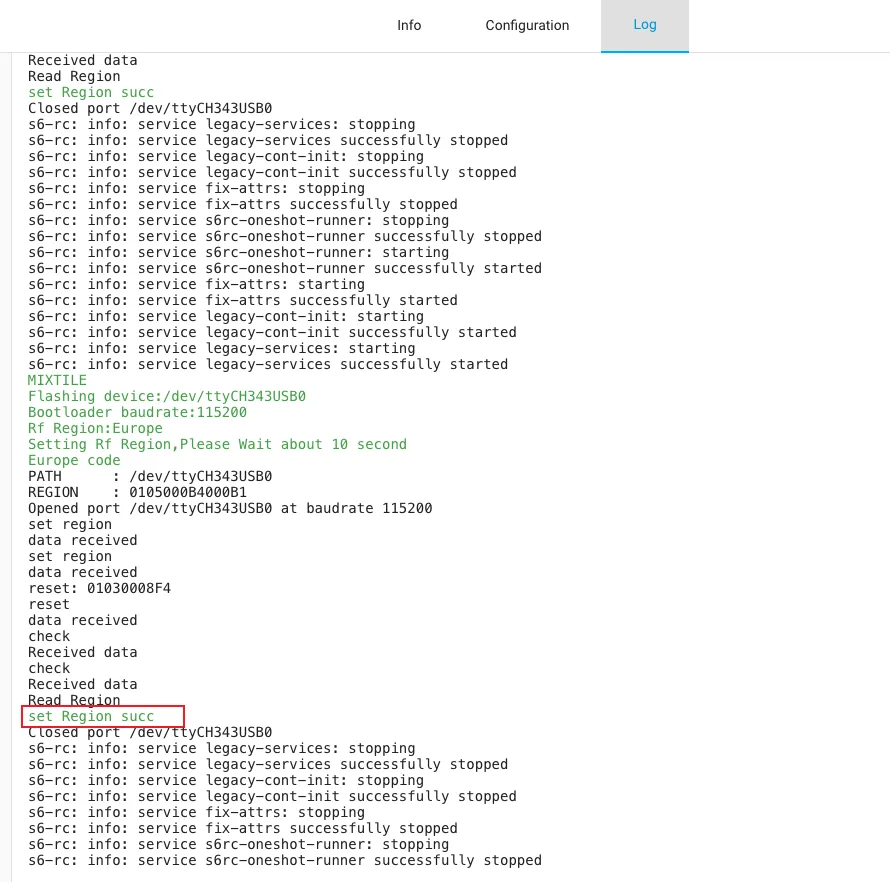
- Go to the Log tab to check the status of the region update. If the log output is similar to the one below, the region has been changed successfully.
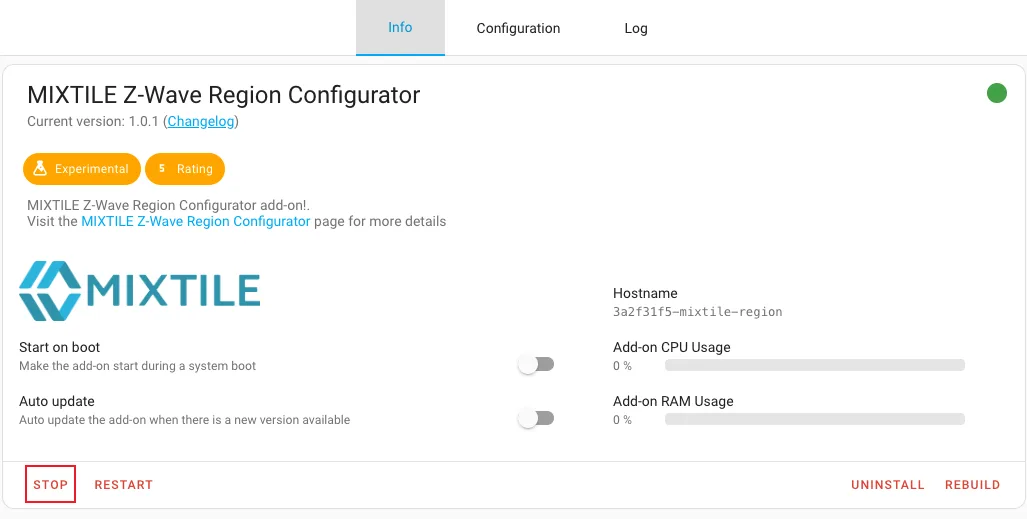
- MIXTILE Z-Wave Region Configurator will stop automatically. You can also go back to the Info tab and click STOP to stop the add-on manually:
Enabling Z-Wave again
After changing the region, you can enable Z-Wave services again as follows:
- Click Settings > Devices & services and then click the SHOW button in the upper-right corner:
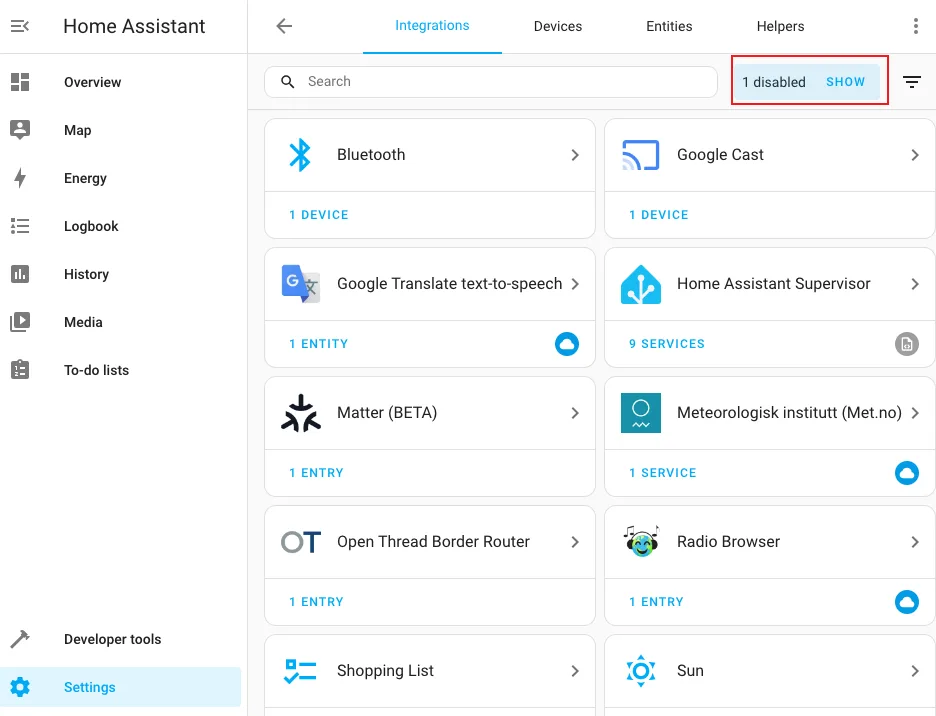
- Find Z-Wave and click Enable to enable it again (the Z-Wave JS add-on will be enabled at the same time):

Now you have successfully changed the region and enabled Z-Wave again.